Using Views
A Project can be shown as a List, a Board, a Calendar, a Backlog or a Timeline. These are Layouts of the same Tasks: moving a Task on the Board moves it in every Layout.
Switching Layouts
A Project’s ··· menu lists its Layouts under View, and the Planner’s are tabs under its title. ⇧V steps through the Layouts a page offers and wraps around.
A Project opens on its default view, the List until you pick another Layout and choose Set as default view in the ··· menu. Any other switch lasts until you leave the page. The default is kept on the device you set it on, and does not follow you to another device.
Not every page has Layouts. Projects and the Planner have them. Today, Upcoming, High Priority, Labels and Filters do not, and the Inbox shows only the List. The Timeline needs a wide window, so a phone-sized one does not offer it. The Backlog and Timeline are on the web and desktop apps.
List
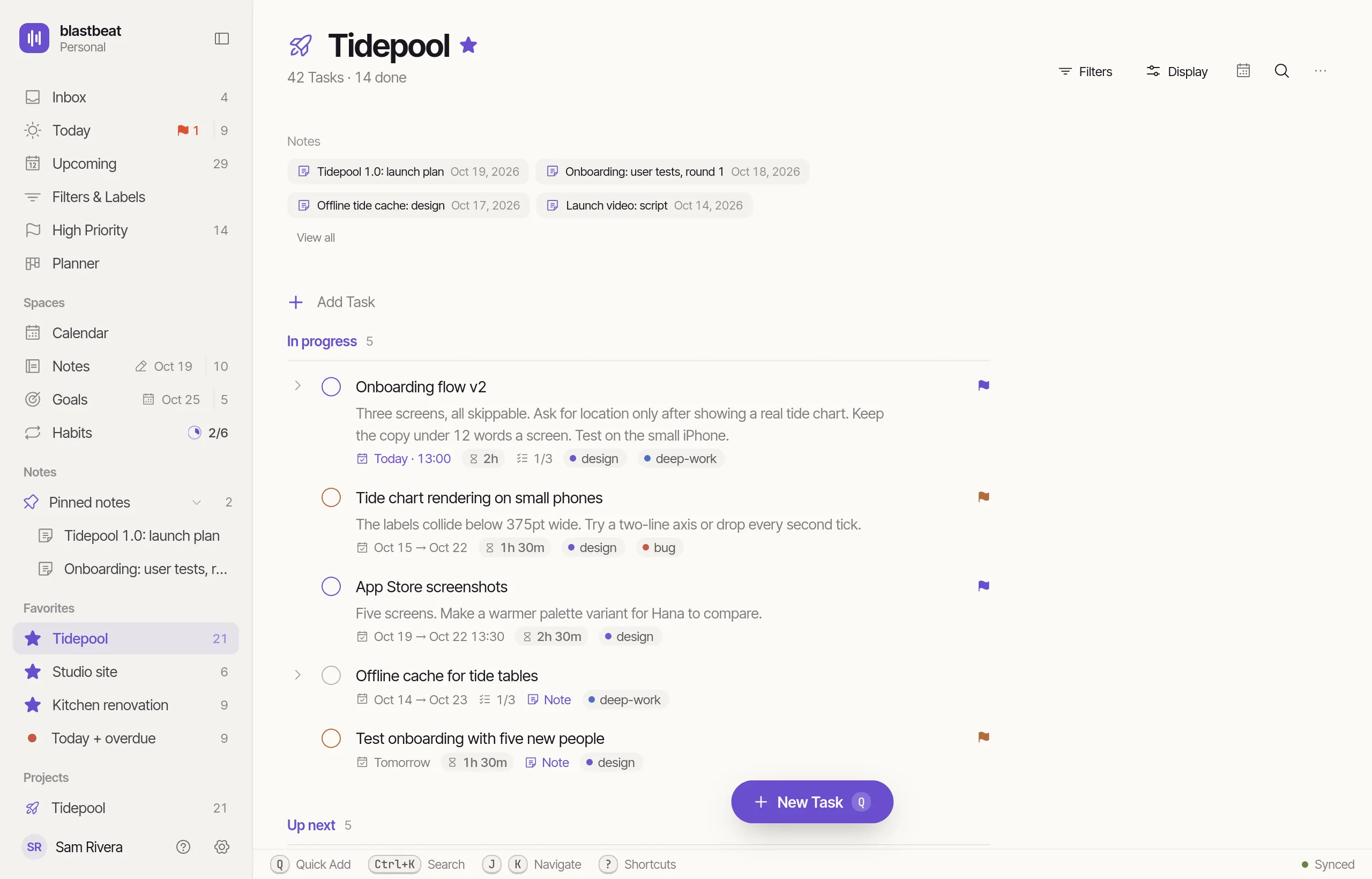
The List is where every Project opens. Tasks with no Section come first, then each Section in order, with the Add Task row and Add Section at the end.
- Drag a Task to reorder it, or to move it to another Section. ⌥↑ and ⌥↓ do the same from the keyboard.
- Subtasks sit under their parent.
- Completed Tasks collapse under each Section. The Completed tasks switch in the Display menu shows or hides them.
- Right-click a Task, or use its ··· menu, for everything you can do to it.
Board
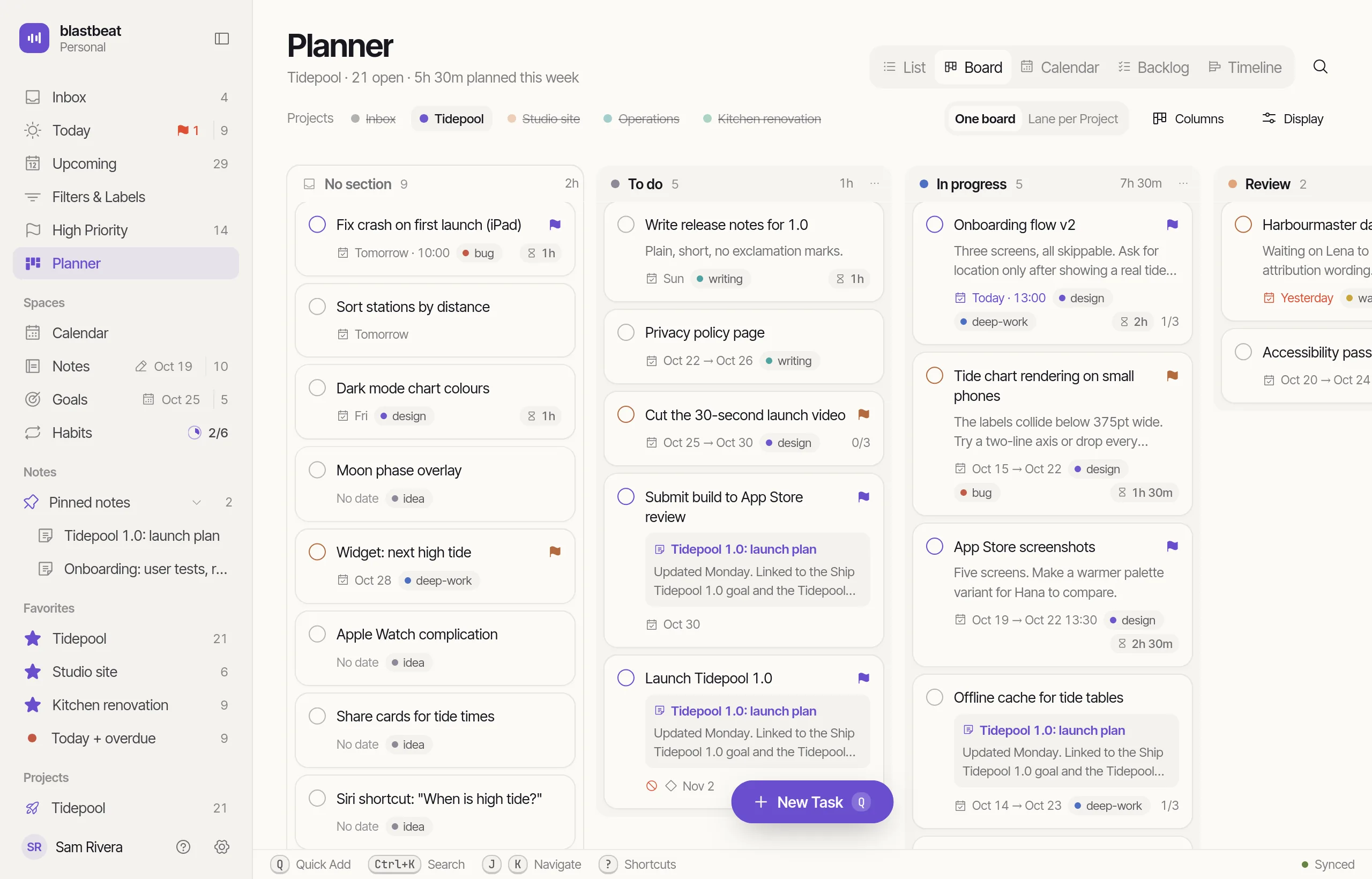
The Board has one column per Section. Tasks that have no Section show first, under No section.
Drag a Task to another column to change its Section, or within a column to reorder it. Select several Tasks and drag them together. Drag a column’s header to reorder the Sections.
Each column has a ··· menu to rename or delete it, and an Add Task footer.
Calendar
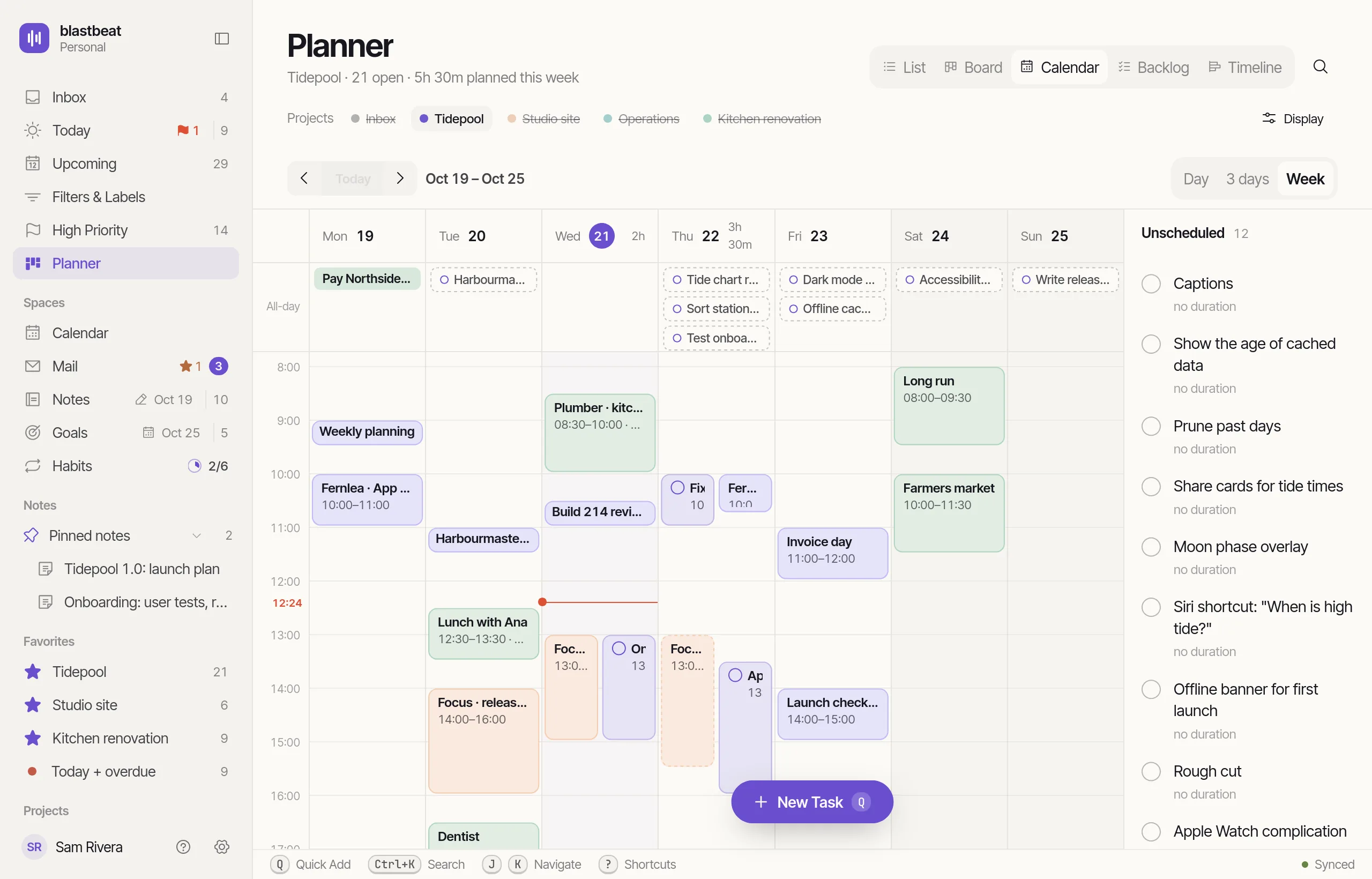
The Calendar Layout draws the Project’s Tasks on a time grid, as a Day, 3 days or a Week, in the Project’s own page.
- A Task with a Due time is a Time-block as long as its Duration, or 30 minutes if it has none.
- Drag a block to move it, and pull its bottom edge to change its Duration.
- The Unscheduled rail lists open Tasks with no Due. Drag one onto a day or a time to schedule it.
- Click an empty slot, or sweep across a few, to make a new Task there.
- Events from a connected calendar appear beside the Tasks, and they are read-only in this Layout. Google Calendar covers connecting one.
The Display menu turns the Unscheduled rail, Events and completed Tasks on and off.
The full Calendar page, which gc opens, is a separate place with its own Day, Week and Month views and Event editing.
Backlog
The Backlog is for planning in Sprints. A Sprint is a Section with a start day, a length and an optional goal, and at most one Sprint per Project is active at a time. A Backlog section holds the Tasks no Sprint has taken.
The Layout lists Sprints first, then Backlog sections, then the Project’s other Sections. Drag a Task between them to change its Section. A Sprint has Start sprint and Complete sprint buttons. Completing one moves its open Tasks to the next planned Sprint, or to a Backlog section if there is none.
The New section button makes a Sprint or a Backlog section, and converts an existing Section into one. In List and Board, a Sprint is an ordinary Section.
Timeline
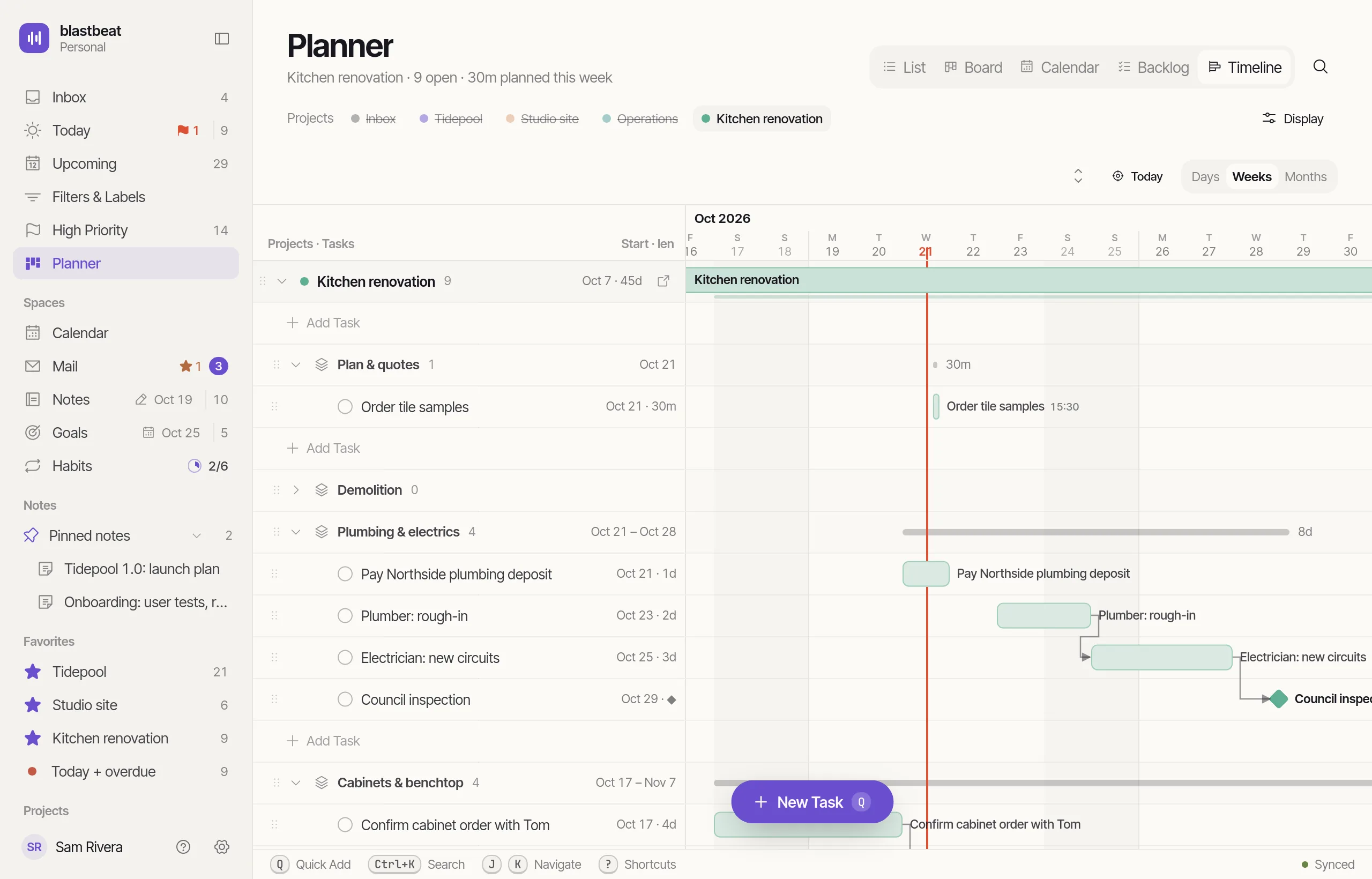
The Timeline draws the Project as bars from Start to Due, on a Days, Weeks or Months scale. It shows the Project’s own bar, then its Sections, Tasks and Subtasks.
- A Milestone, a Task marked as a single point at its Due, is a diamond.
- A Blocker is drawn as an arrow from its end to the start of the Task that waits on it.
- Drag a bar to move it, or an edge to change its Start or Due. A parent with dated Subtasks moves them with it. Each change has an Undo toast.
- Drag rows and Sections to reorder them. Add Tasks, Subtasks and Sections in place.
= and - change the scale. [ and ] move the selected bar. The Display menu turns Blocker arrows, Unscheduled Tasks and completed Tasks on and off.
The Planner
The Planner shows the Tasks of the Projects you pick, in any of the five Layouts. There is one Planner per account. gp opens it. It has no Display menu: its ··· menu holds the same choices.
Its Board uses Board columns, each mapped to at most one Section per Project, instead of Sections. A switch chooses one shared Board or a lane for each Project. The Backlog can combine Sprints or give each Project a lane.
Upcoming
Upcoming has four modes instead of Layouts, kept on your device: List, Day, Week and Month.
- List groups the open Tasks due after today under Tomorrow, each weekday before the weekend, This weekend, Next week and Later. Show date headers, in its ··· menu, turns the headings off.
- Day shows a week strip and a one-day timeline. Drag a Task onto the timeline to give it a time, or to another day to move it. Tasks with no time wait in the Unscheduled tray.
- Week shows the chosen day’s week under the week strip, each day’s Tasks under its own heading.
- Month shows a month grid with counts, and the chosen day’s Tasks below it.
Show less
The Filters button on a list narrows what it shows. It can limit the list to Tasks due today, upcoming or urgent, or to one Label; on a Project it can also limit it to incomplete or completed Tasks. It is not saved: it clears when you reload the page. While it is on, you cannot reorder Tasks by hand.
Density makes every list tighter. Settings, then Appearance, has Cozy, Comfortable and Compact, and the choice follows your account.
Lists are grouped by Section, by date or by time of day, depending on the page. You cannot sort them by a field you choose. For a different slice of Tasks, write a Filter.