Skip to content
blastbeat
Views

Five Layouts.One set of Tasks.

Every Project has a List, Board, Calendar, Backlog and Timeline, one pick away in its ··· menu. Nothing is copied between them: move a Task on the Board and the List has already changed.

⇧V cycles LayoutsOne set of TasksThe Planner spans Projects

The same nine Tasks laid out as a List, a Board, a Calendar, a Backlog and a Timeline. Pick a Layout to see them move.

⇧Vcycles Layouts
Write the case study introMon 10:00
Fix the footer on mobileTue 13:00
Review the homepage copyWed 09:00
Shortlist three print shopsThu 15:00
Photograph the new workWed 14:00
Publish the launch postThu 11:00
Book the venue for the talkFri 16:00
File the VAT returnMon 15:00
Update the changelog pageTue 10:00
ListSections and Subtasks. The default for a reason.
BoardSections are columns. Drag a Task to move it between them.
CalendarA Task with a Due time and a Duration lands beside your Events.
BacklogSprints first, then the Backlog section. Rank what’s next. Web and desktop.
TimelineBars from Start to Due, with Milestones and Blocker arrows. Web and desktop.

Sections and Subtasks. The default for a reason.

Up close

Every Layout, as it ships.

Scroll through the app itself, shown with demo data. The Backlog and the Timeline are on the web and the desktop only.
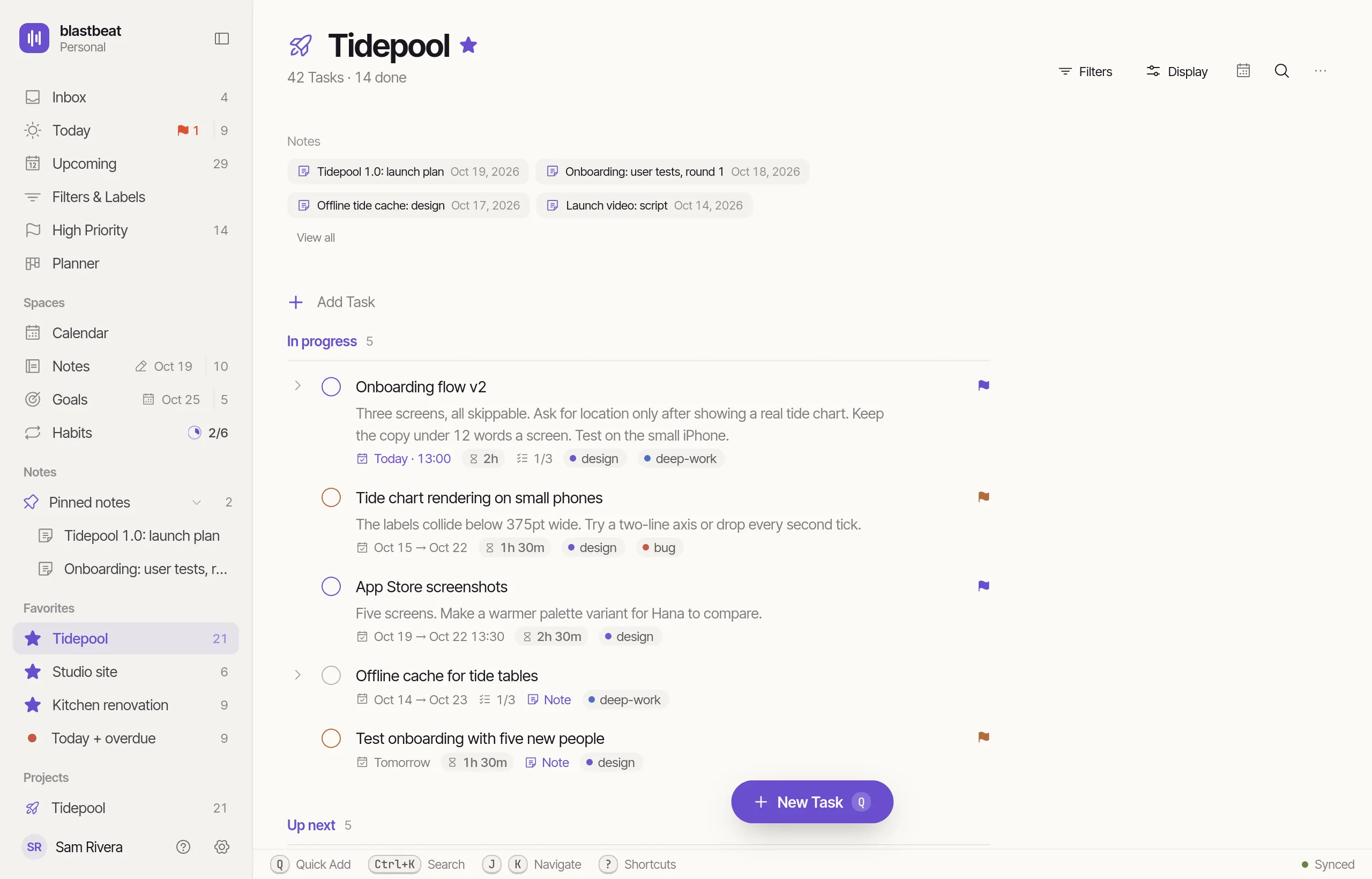
ListSections, Subtasks and the Task menu. Drag to reorder, or select several and act on them together.
The Tidepool Project as a List: the count under its title (42 Tasks · 14 done), its linked Notes, then the In progress Section with its Tasks, each with its Due, Duration, Subtask progress and Labels.
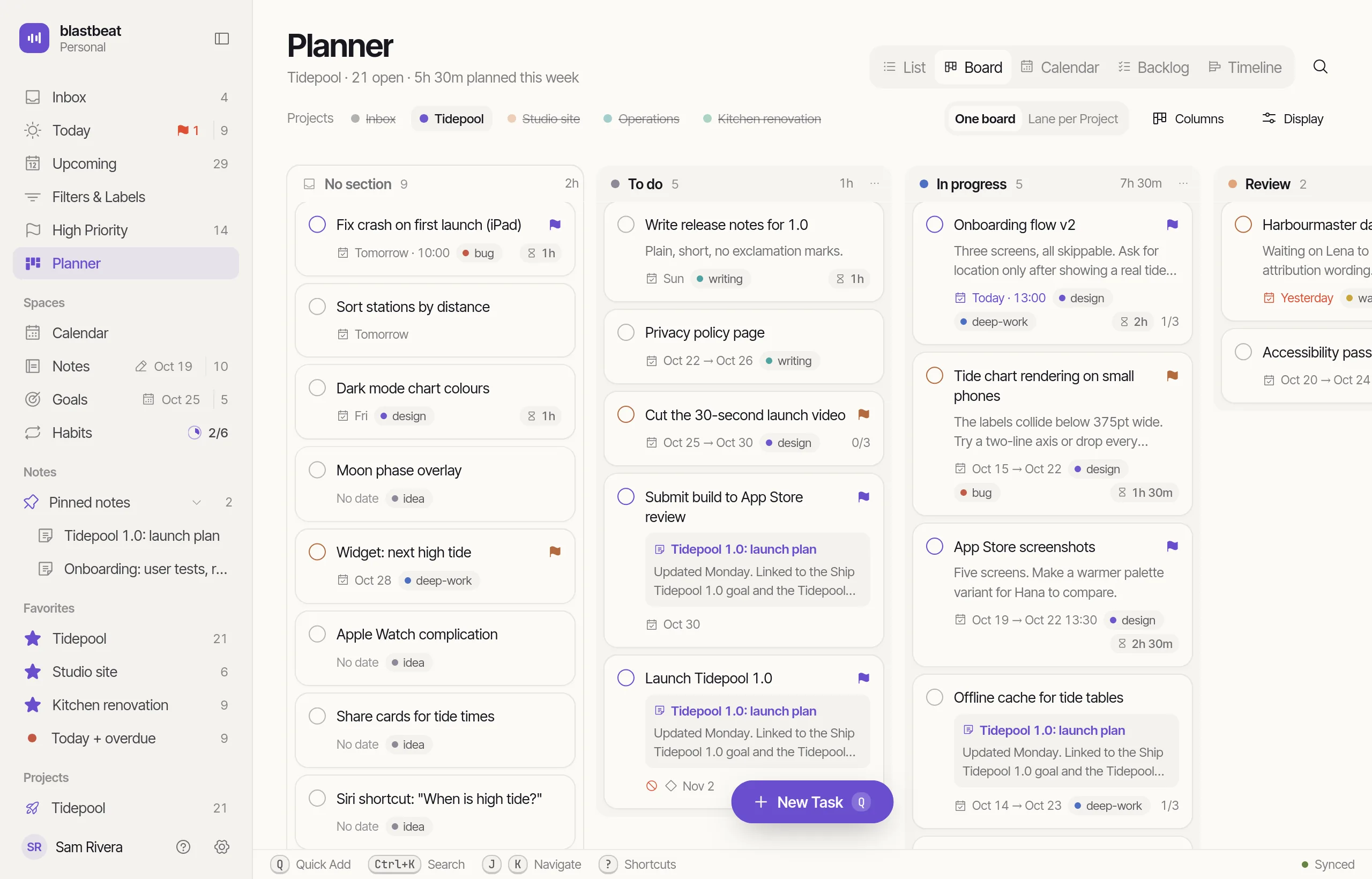
BoardSections become columns. Drag a Task to another column to move it to that Section, or click it to set its Due, Duration and Priority.
The Board in the Planner, showing the Tidepool Project: columns for No section, To do, In progress and Review, each holding its Tasks.
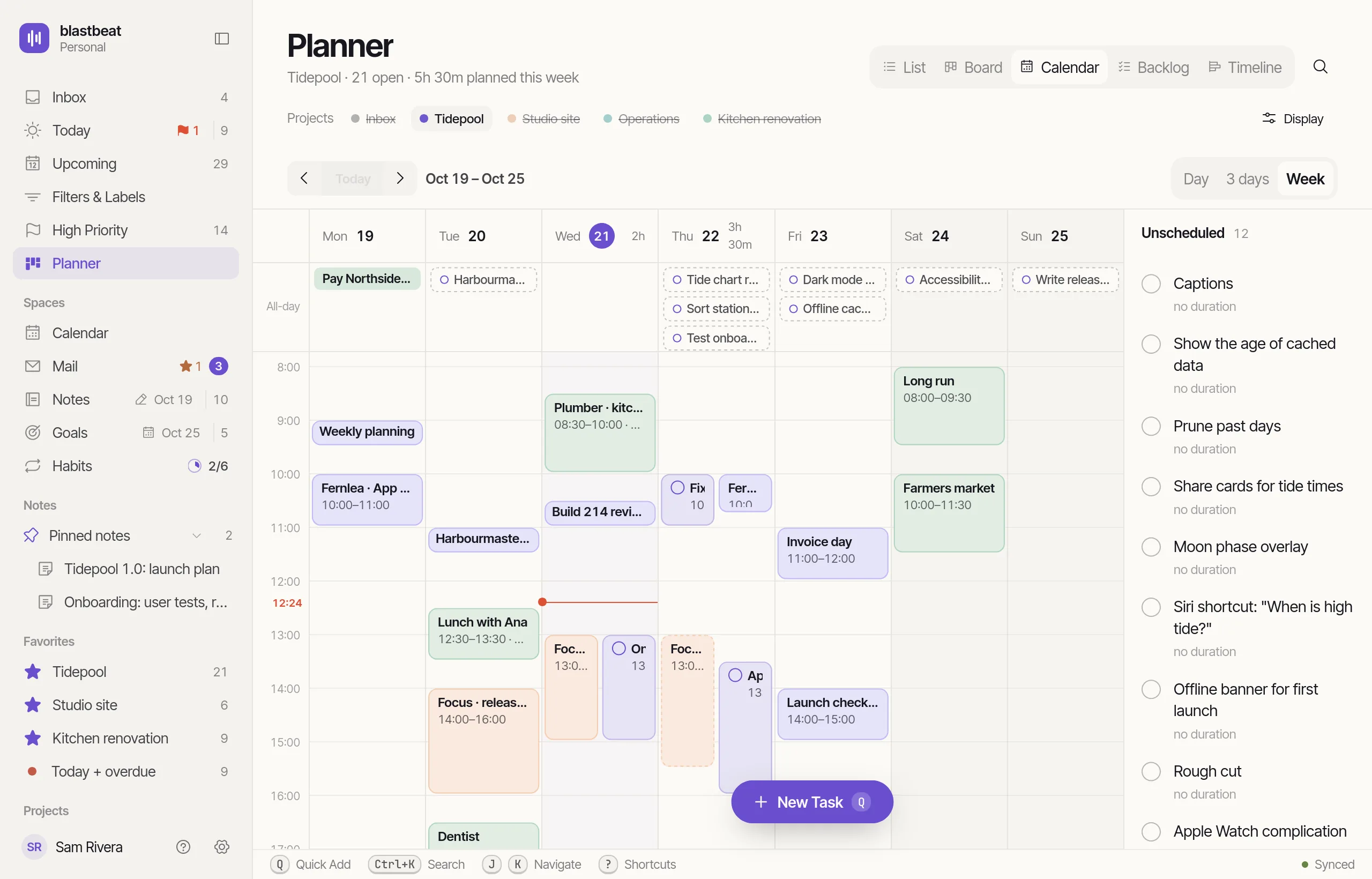
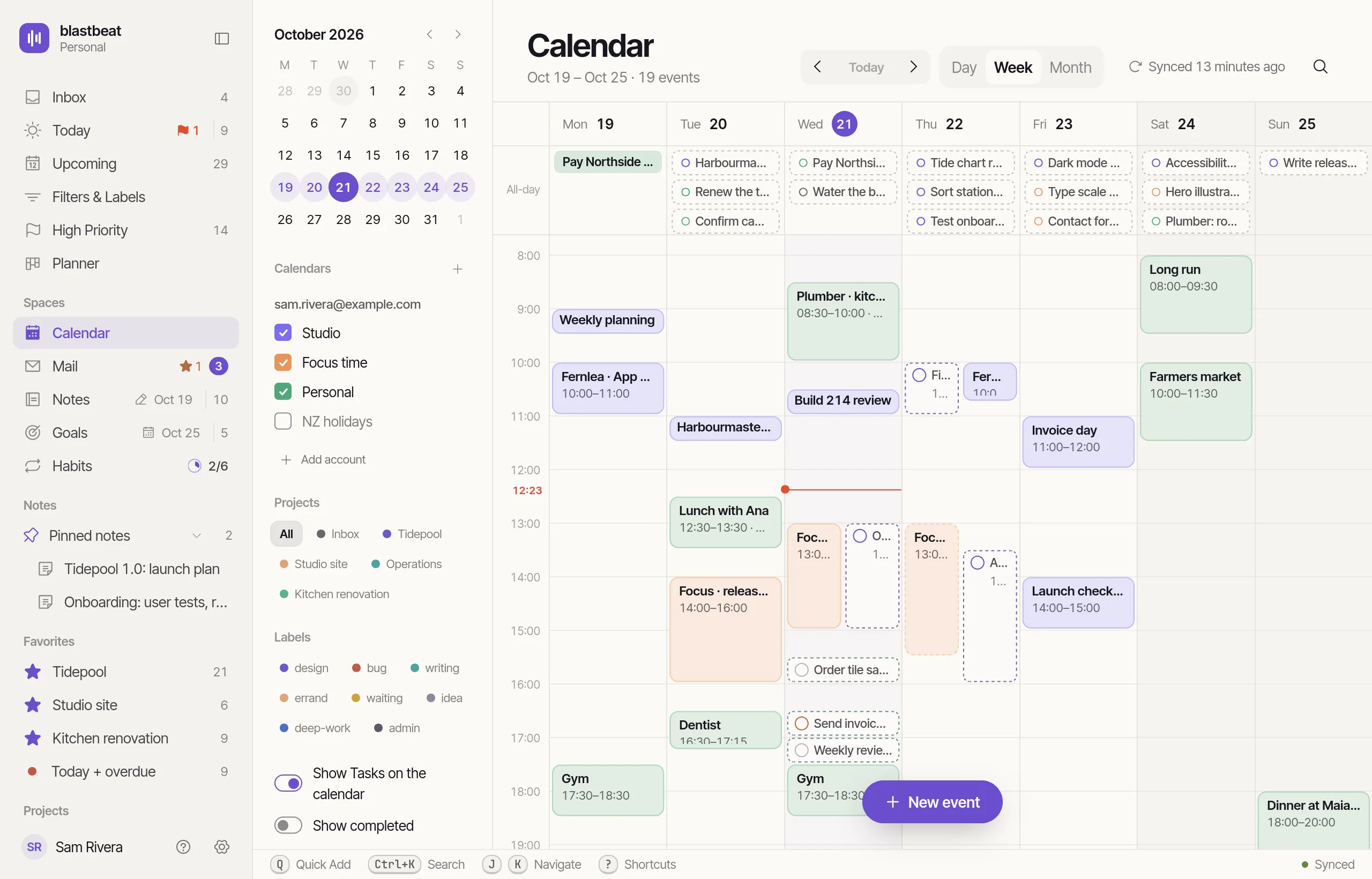
CalendarOne day, three days or the week, with your Events beside the Tasks. Drag a Task from the Unscheduled rail onto the grid to time-block it; pull its bottom edge to change its Duration.
The Calendar in the Planner, showing Tidepool: a week grid with Events and time-blocked Tasks, and an Unscheduled rail of Tasks to drag onto it.
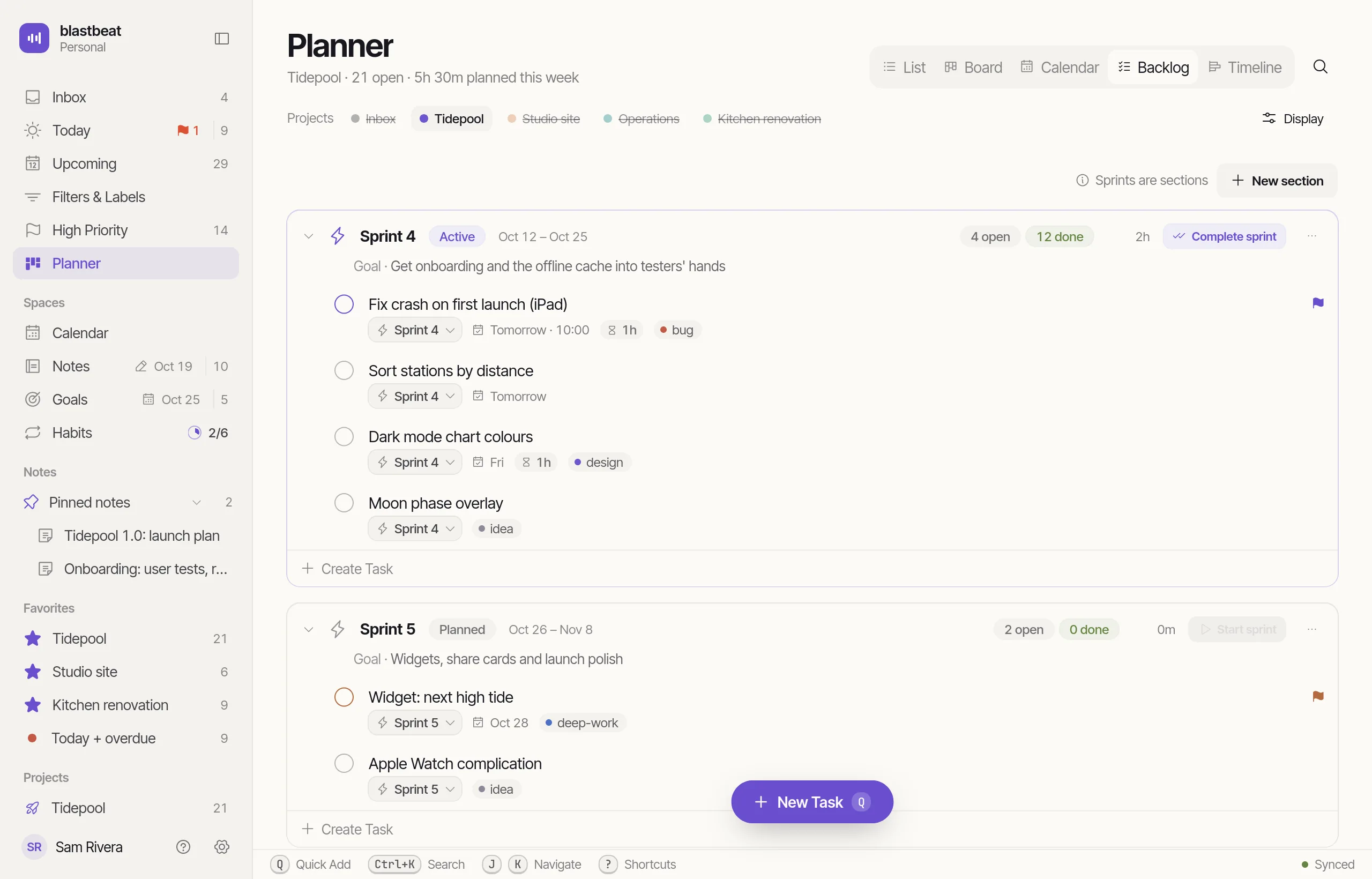
BacklogSprints first, then Backlog sections, then your other Sections. Drag Tasks between them to fill a Sprint.
The Backlog in the Planner, showing Tidepool: Sprint 4 (Active) and Sprint 5 (Planned), each with its dates, Goal and Tasks.
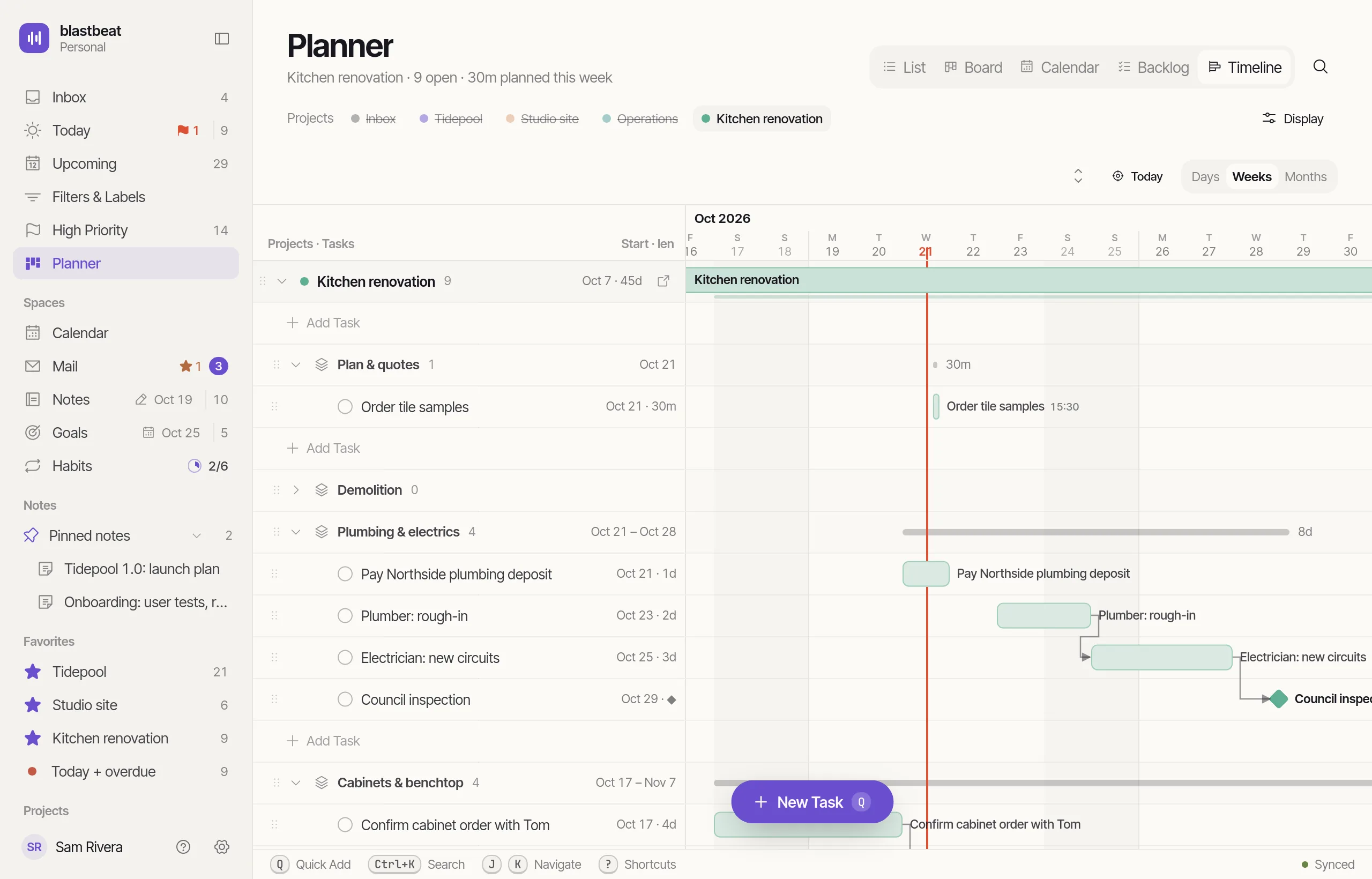
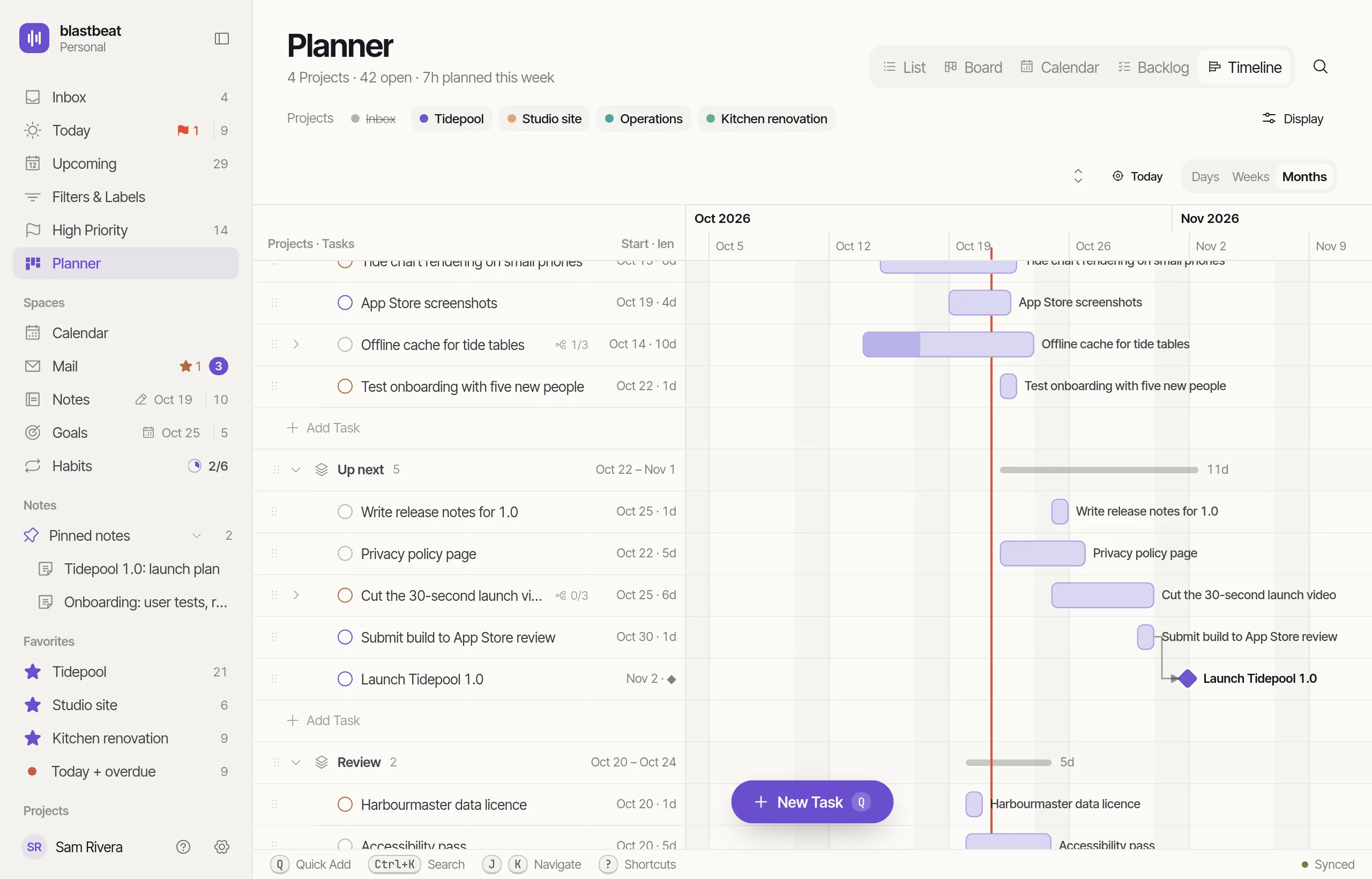
TimelineSections, Tasks and Subtasks as bars from Start to Due, on a Days, Weeks or Months scale, with Milestones and Blocker arrows.
The Timeline in the Planner, showing the Kitchen renovation Project: Sections and Tasks with Start and length on the left, bars across the weeks on the right, a line for today, Milestone diamonds and Blocker arrows.
Timeline

Think in weeks, not just days.

The Timeline in the Planner, showing the Kitchen renovation Project: its Sections and Tasks as bars across the weeks, a line for today, Milestone diamonds and Blocker arrows.
Timeline

Across Projects

Across Projects

The same five Layouts over several Projects.

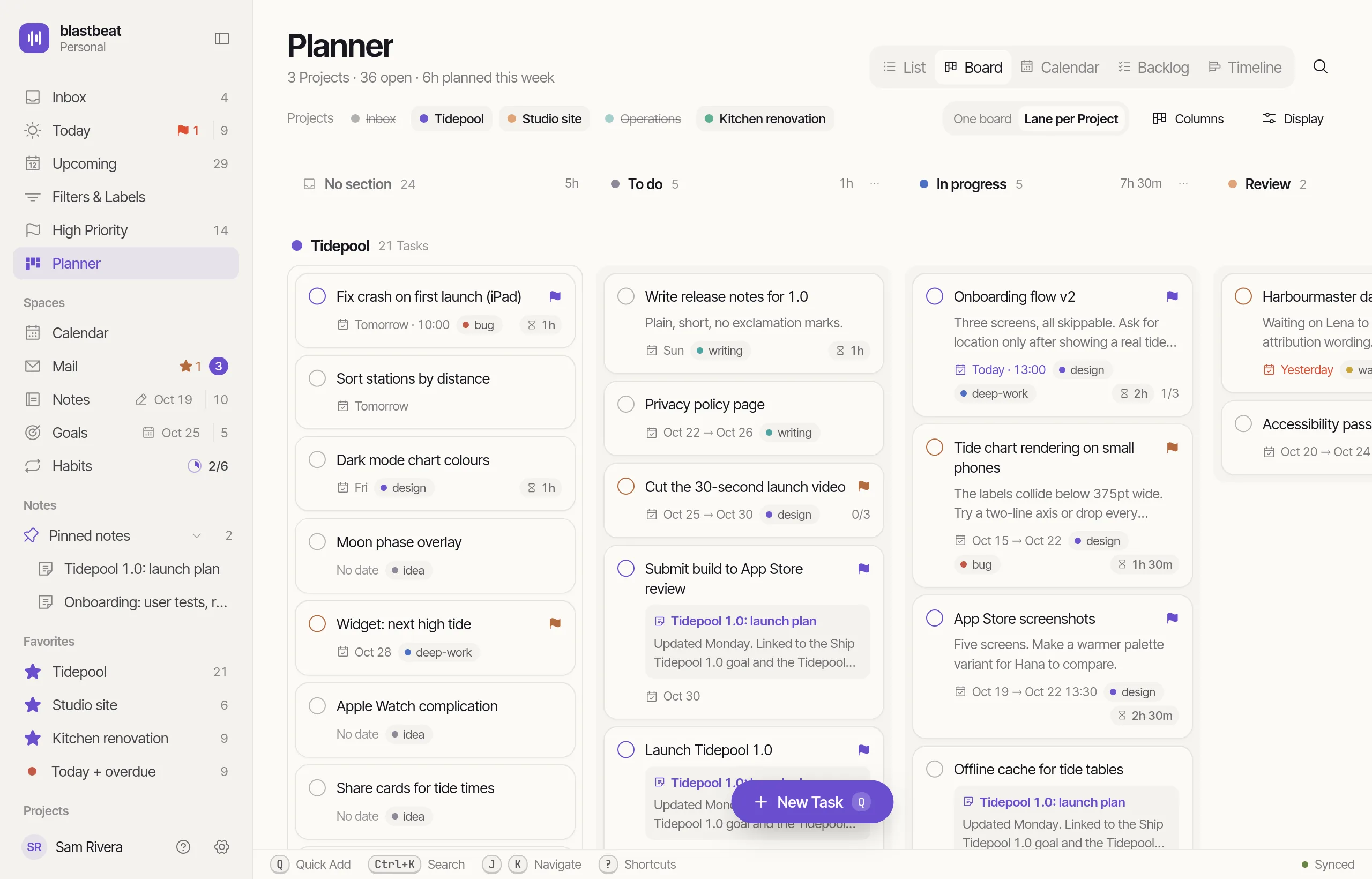
The Planner shows the Tasks of the Projects you pick, in any Layout. Its Board can share one set of columns or give each Project a lane; its Timeline lists each Project with its Tasks.

  • Switch Projects on and off with the chips along the top
  • Board columns map to one Section in each Project
  • The Backlog can combine same-named Sprints
gpPlanner
The Planner’s Board with Lane per Project over three Projects: the Tidepool lane’s Tasks sit in the No section, To do, In progress and Review columns.

Drag and drop

Drag and drop

Pick it up by the Task itself.

Rows, Tasks on a Board, bars and calendar blocks all drag the same way: the item lifts into a chip that follows the pointer, and the drop target shows where it will land.

  • Select several Tasks first and the drag carries them all
  • Unscheduled Tasks drag straight onto the Calendar
  • Drag a Section by its handle and its Tasks go with it
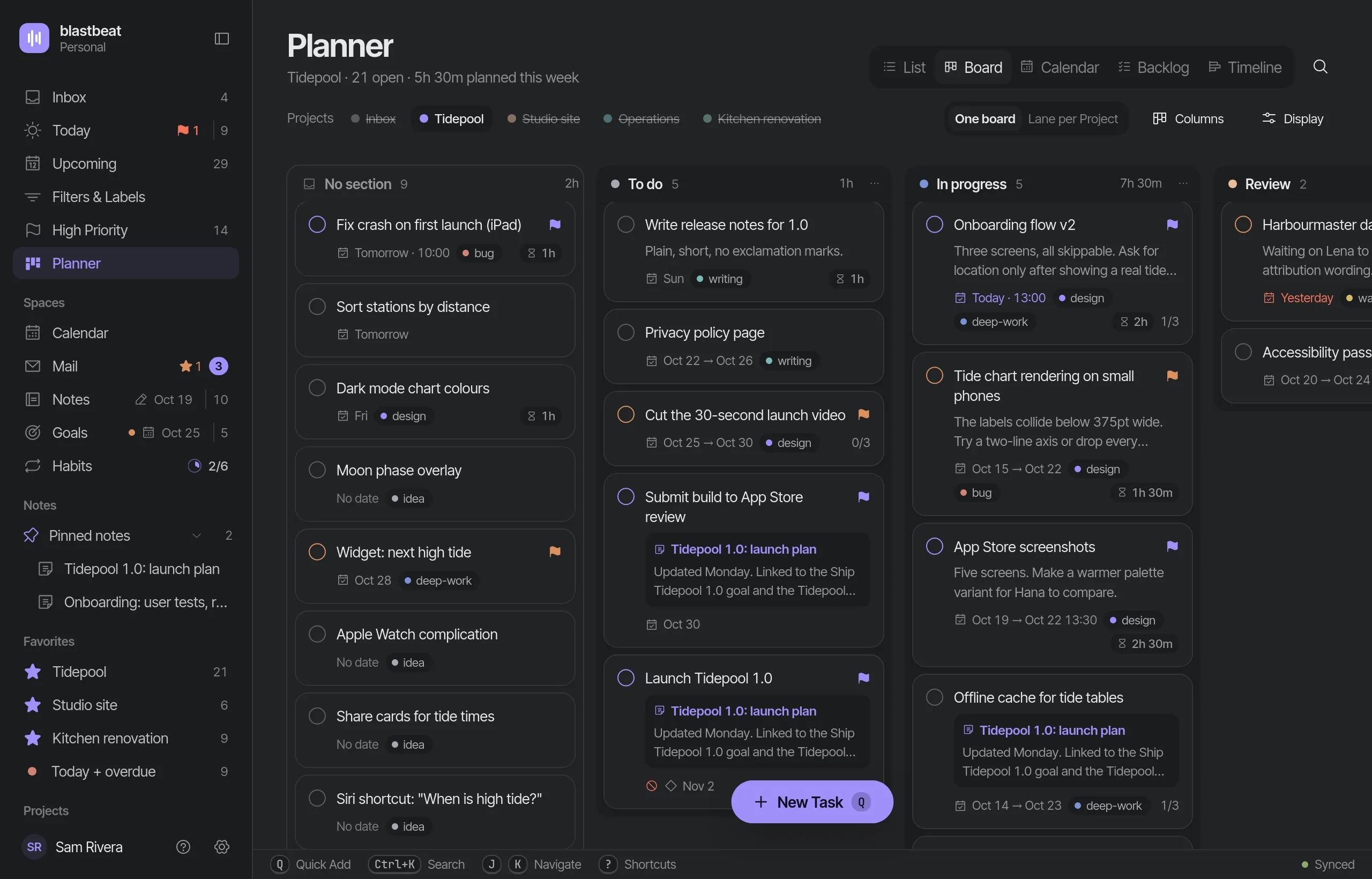
The Board in the dark theme: columns for No section, To do, In progress and Review holding their Tasks.
Details

What every Layout shares.

One Task panel

The same details, whichever Layout you open a Task from.

Display menu

Switch Completed Tasks, Events and Blocker arrows for each Project. Its ··· menu picks the Layout.

Filters

Narrow a Layout by Label, Priority or Due without leaving it.

Bulk bar

Select several, then complete, reschedule, move or label them together.

Blockers

Drawn as arrows on the Timeline. One that ends after its Task starts is warned about, never rescheduled.

Keys

J and K to move, Enter to open, ⇧V for the next Layout.

⇧V
On iPhone, coming soon

List, Board and Calendar. The Backlog and the Timeline stay on the web and the desktop.