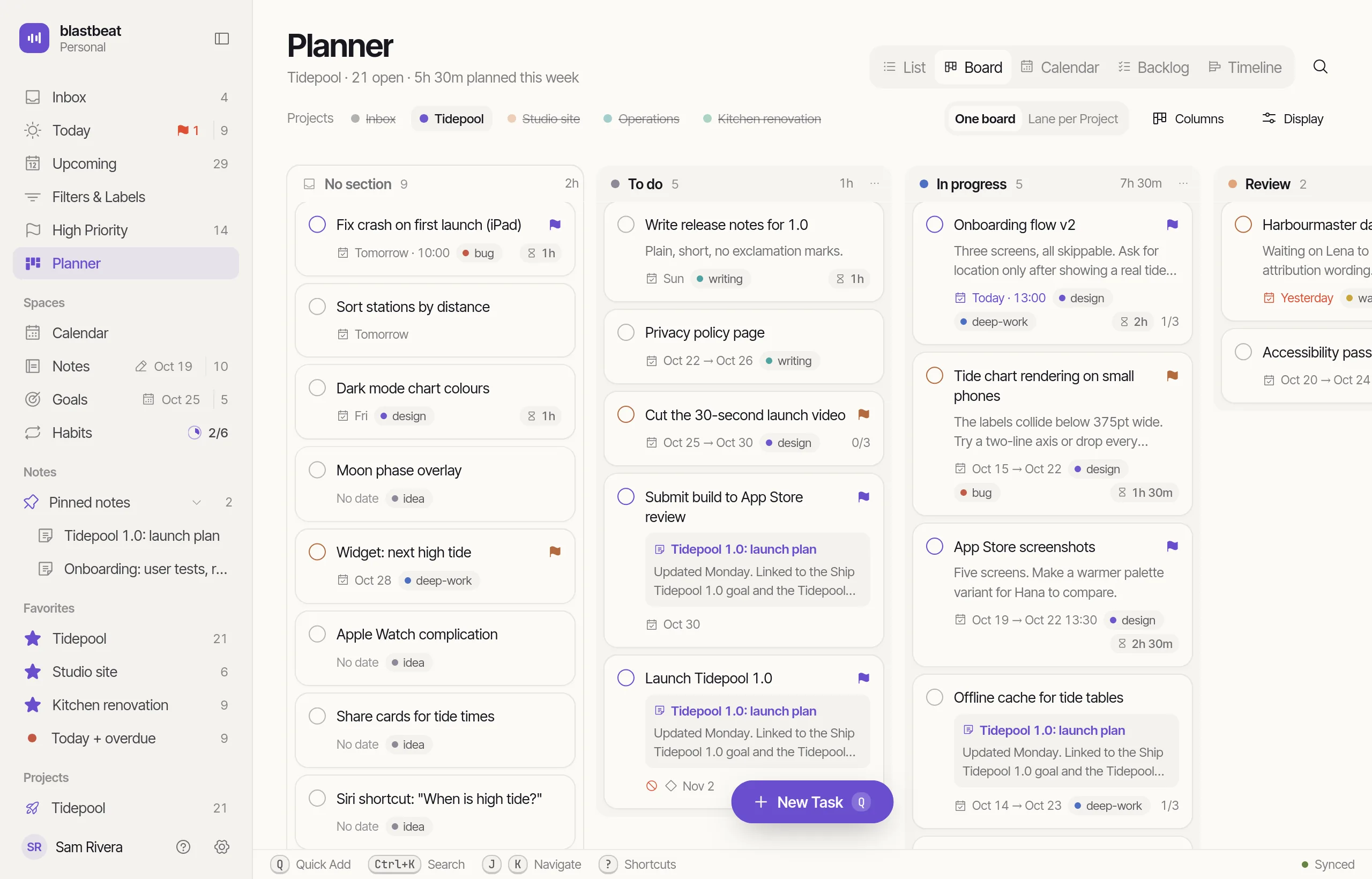
The list,done properly.
Capture and navigate
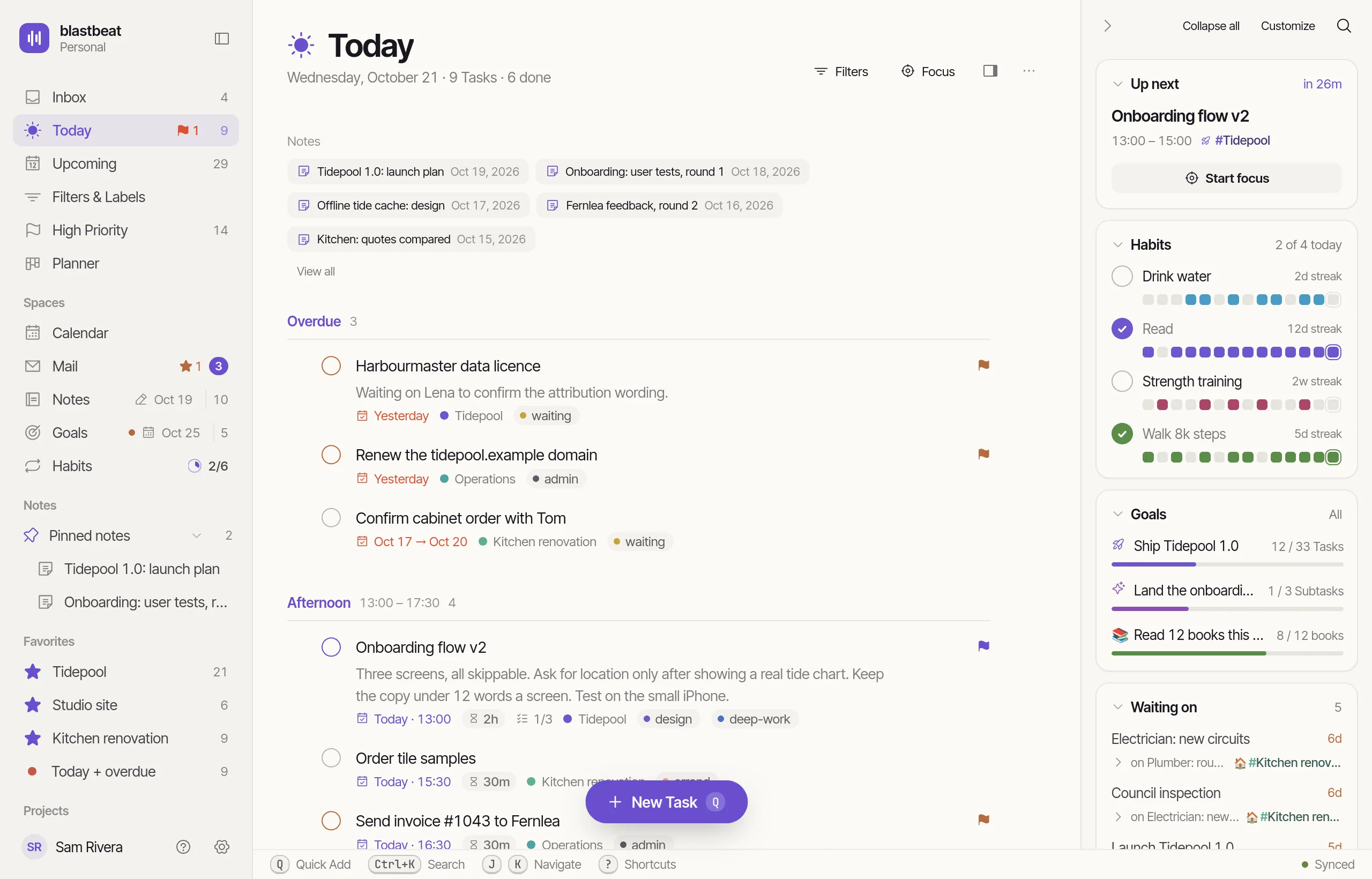
One line in, a whole Task out.
Press Q from any page. The Project, Labels, Priority and Due are pulled out of the sentence and shown as chips; each chip opens its own picker if you would rather click.
- “Email Priya #Inbox @Urgent tomorrow 10am p1” fills in the Project, a Label, the Priority and the Due
- It opens ready for the page you are on: Today, a Project, a Label, High Priority
- Enter adds the Task; Shift and Enter adds it and keeps Quick Add open
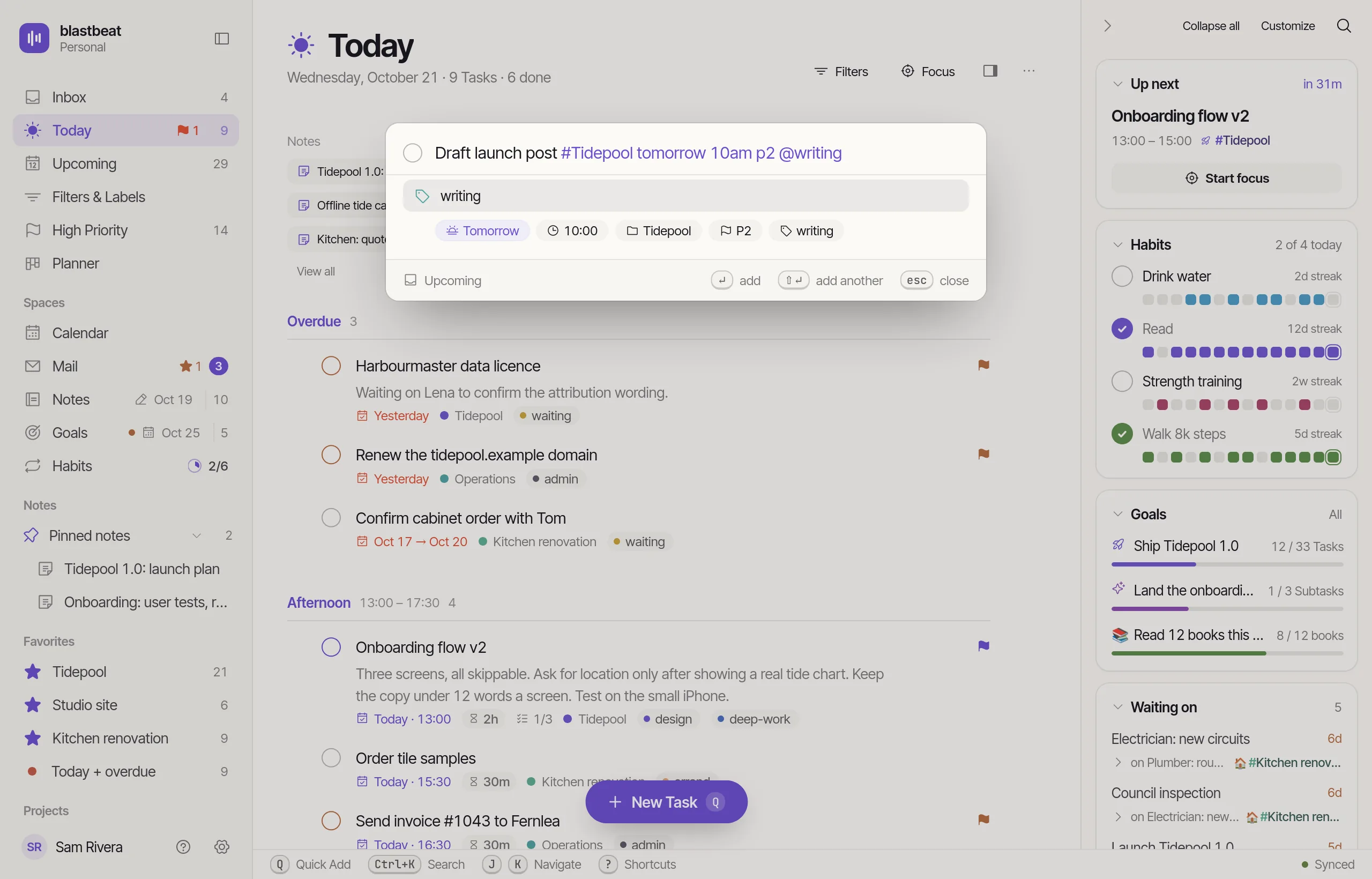
Every Command is a few keys away.
⌘K jumps to views, Projects, Labels, Filters and Folders, searches Tasks and Notes, and runs any Command, with its Shortcut shown beside it so you learn them by using it.
- One box for Tasks, Notes and every Command
- A Command for each menu item: move, set Priority, new Filter, undo
- It also opens on / and :, away from a text field
Press ? and see all of them.
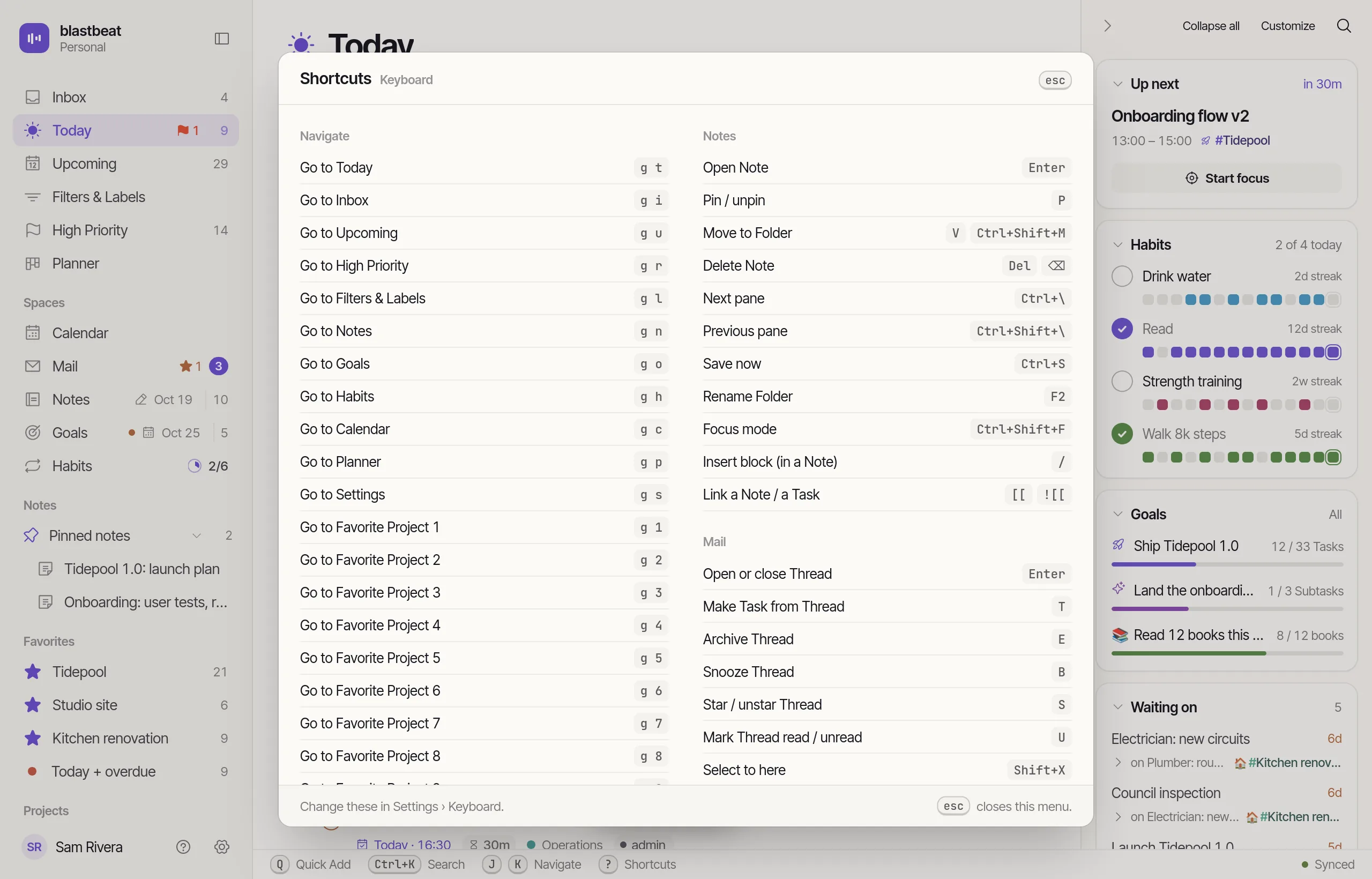
The Shortcuts sheet lists every Command by where you use it: Navigate, Lists, Tasks, Notes, Mail, Timeline, Universal and Create. Two-key jumps like g t and g i mean you rarely touch the sidebar.
- Grouped by where you use them
- Rebind any Shortcut in Settings › Keyboard; one Keymap serves web and desktop
- Hover a control for its name and Shortcut
Type a Task. Watch it parse.
- Title
- Call dentist
- Due
- Fri · 10:00 (2026-10-16)
- Priority
- High (P2)
- Project
- Home
- Labels
- None
- Due a date or a time
- Priority p1 to p4, or !
- Project #Name
- Label @name
The demo runs the same parser as the app. Its clock is fixed at Wednesday, 2026-10-14, and its Projects are Launch, Home, Garden, Reading list and Labels are errands, waiting, deep work.
Focus
One Task. Nothing else on screen.
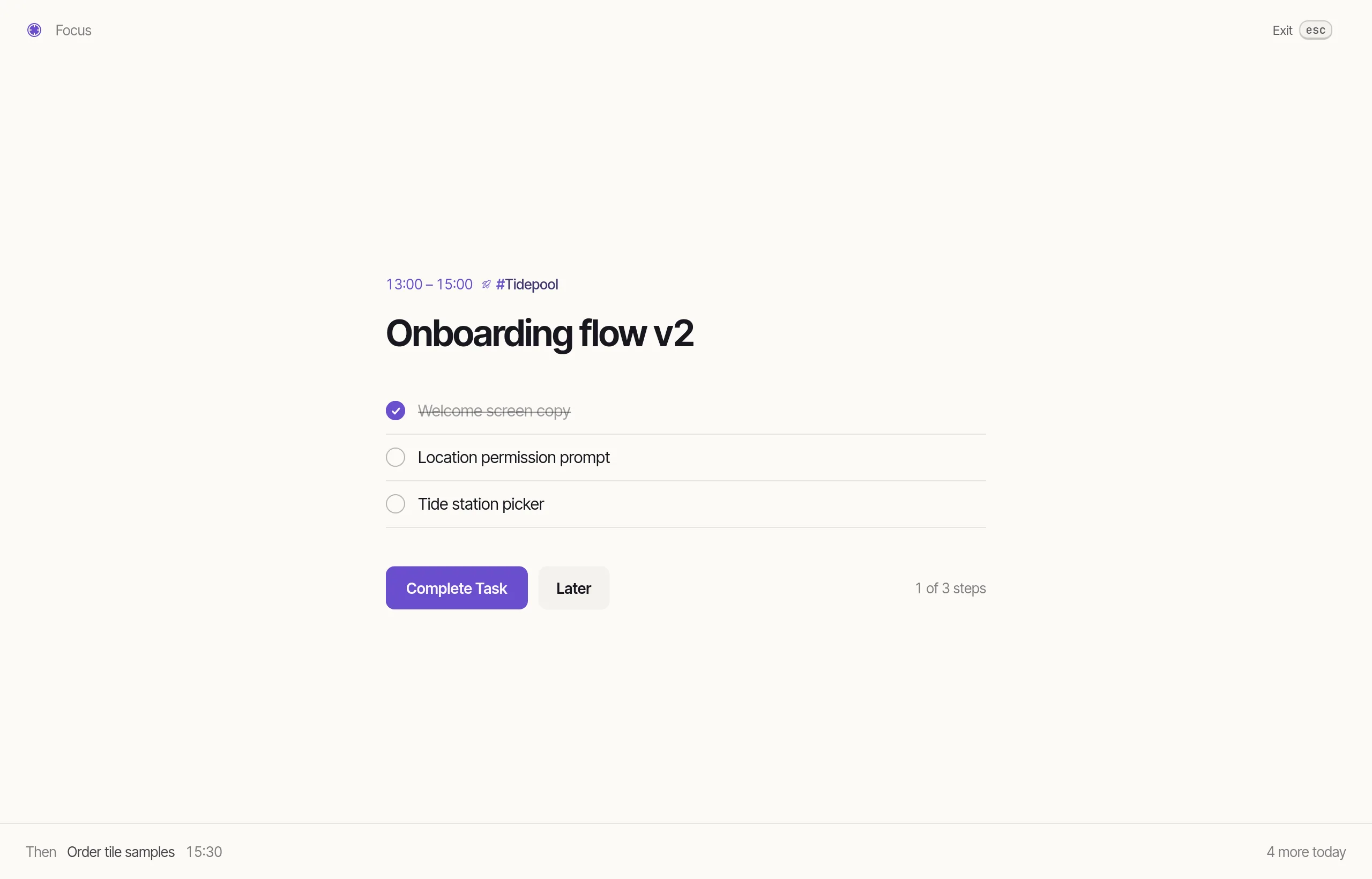
Start Focus from Today or from a Task. One Task fills the window with its time, Project, title and Subtasks; the next Task and a count of the rest wait along the bottom.
- Tick Subtasks off in place
- Complete Task moves on to the next one in Today’s order
- Later sends a Task to the end of the queue
- Esc puts the app back
Change a Task and find it again
Right-click a Task. Change it from there.
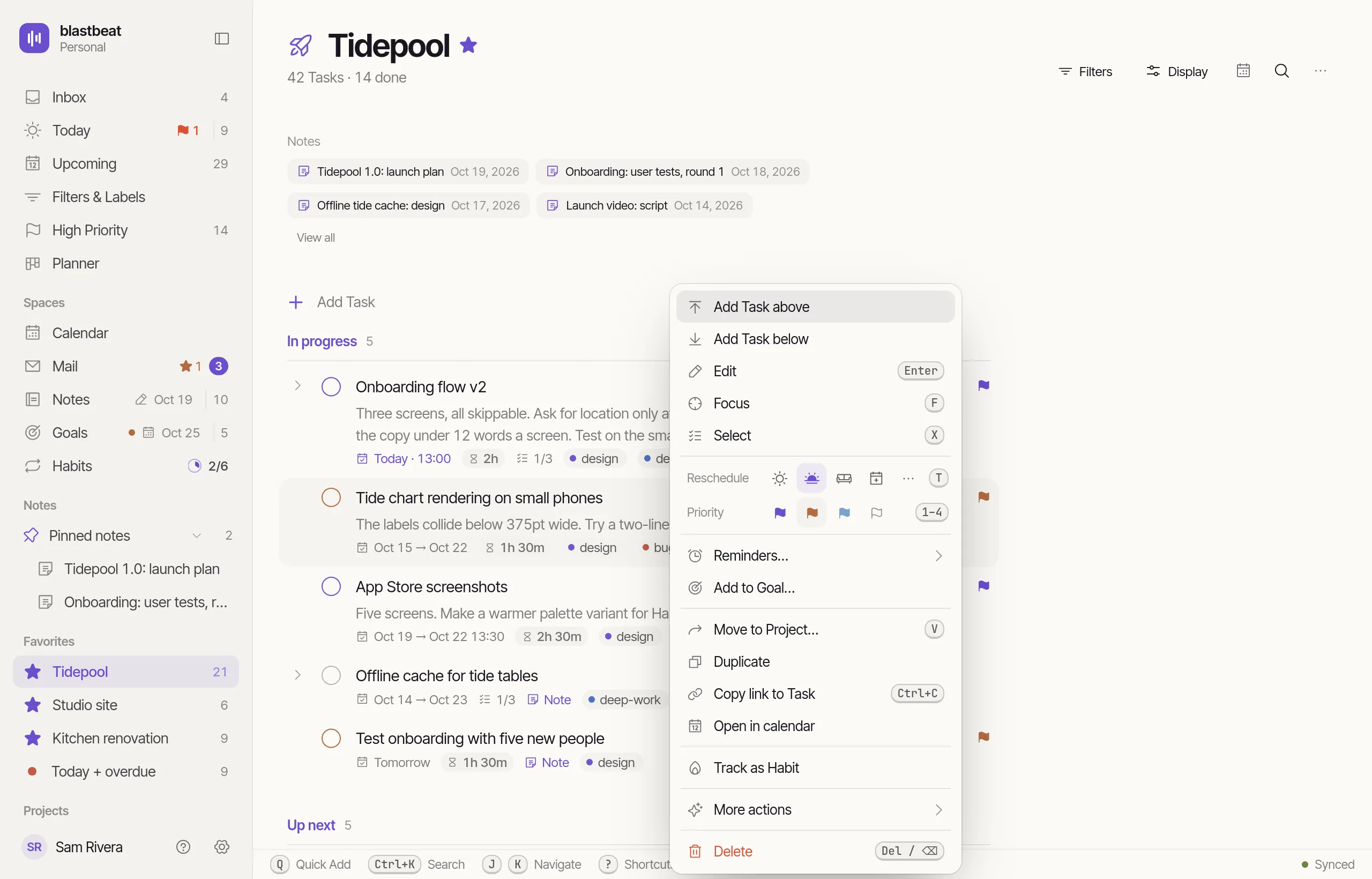
The Task menu holds Reschedule with quick dates, the four Priorities, Reminders, Move to Project, Duplicate, Copy link and Delete. Each has its own Shortcut too.
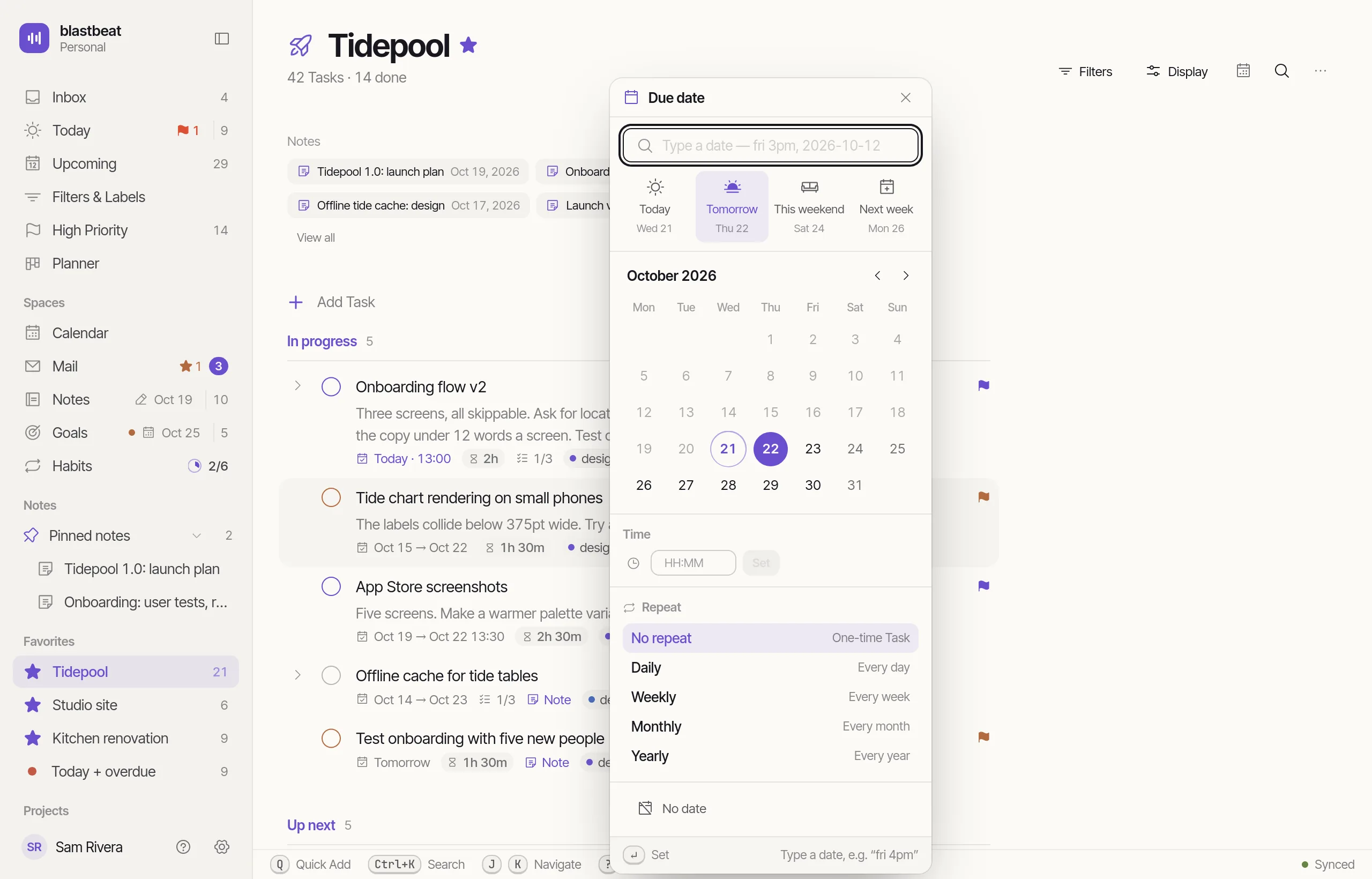
- Quick dates: Today, Tomorrow, This weekend, Next week, or a date you type
- Priority 1 to 4 on the number keys
- The same menu opens from the ⋯ button, or, on the coming iPhone app, with a long press
Saved queries, with a live preview.
Write a Filter query once, such as p1 & #Launch & !@waiting, and pin the Filter to the sidebar. A small language of dates, Priorities, #Projects and @Labels, combined with &, |, ! and parentheses.
- A builder for those who would rather click
- The Tasks that match appear as you type
- A top-level comma splits the results into Filter sections
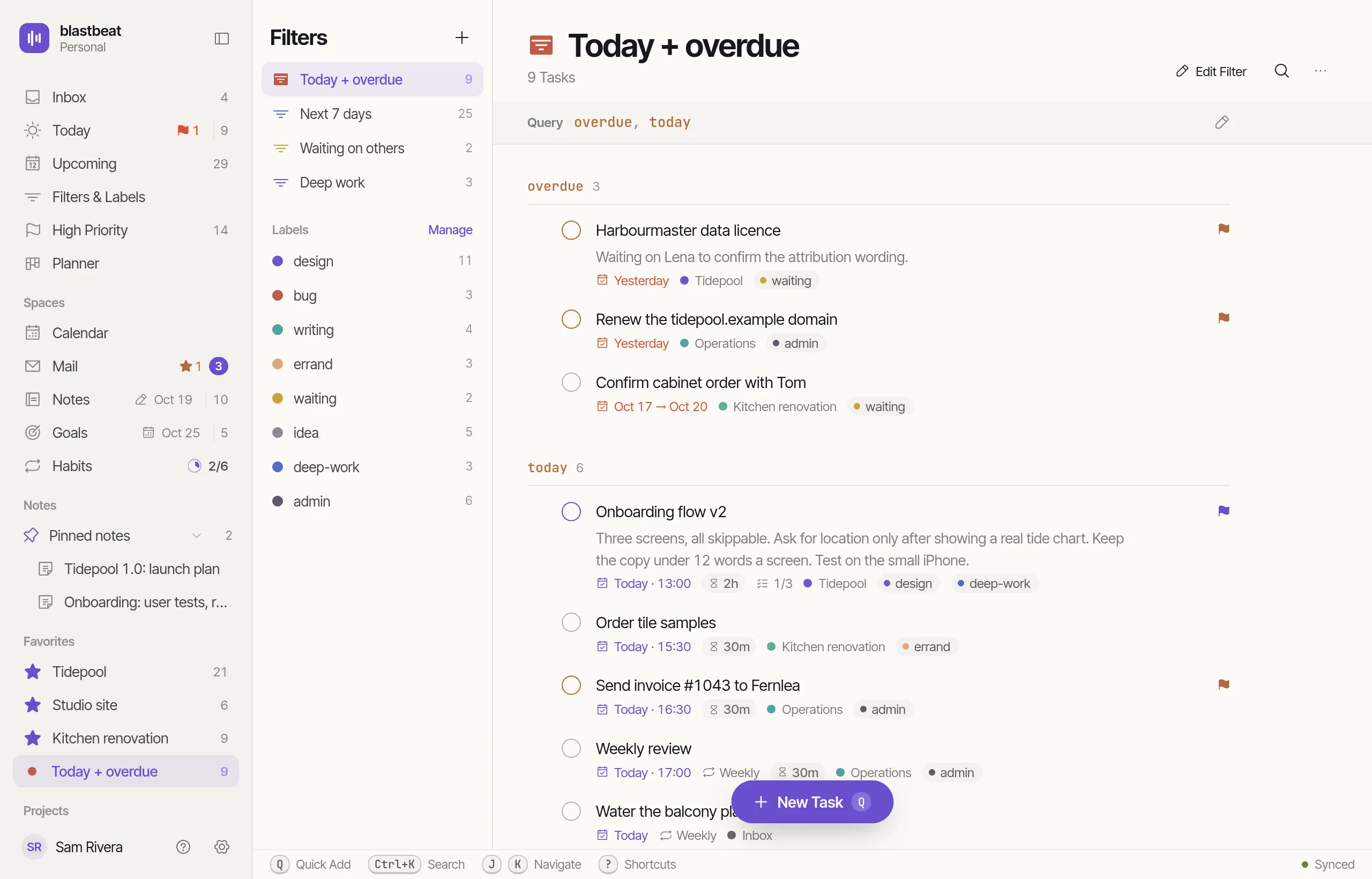
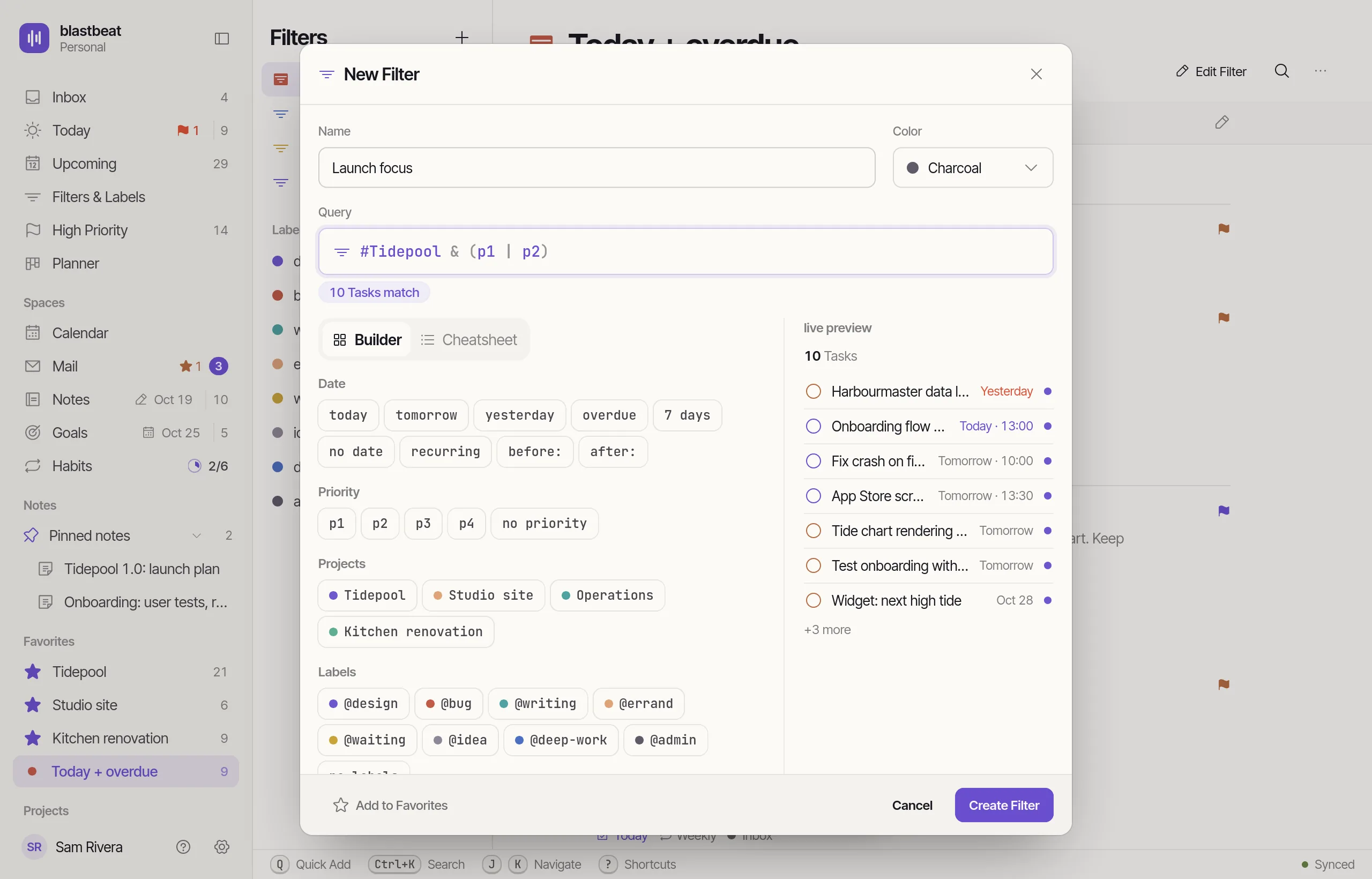
Check a Filter as you write it.
The syntax is valid. The Filter has 1 section.
In words Tasks that are due today, or overdue.
todayTasks due today|or: either side may matchoverdueTasks due before today
This checks syntax only; the API runs a Filter against your Tasks. The suggestions use the demo's Projects, Launch, Home, Garden, Reading list, and Labels, errands, waiting, deep work.
Make it yours
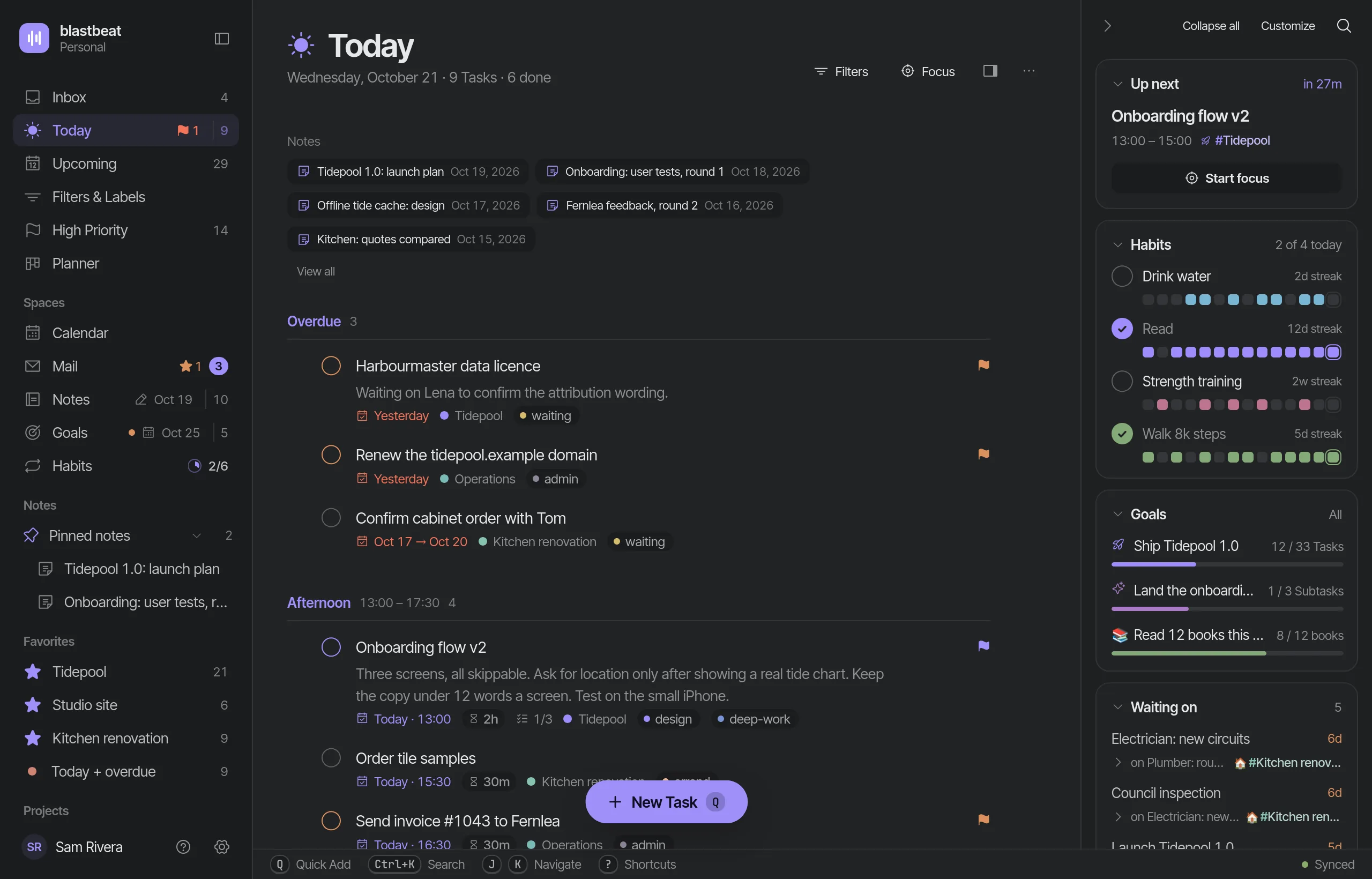
Same paper, after hours.
Every surface has a dark twin. blastbeat follows your system, or you pin Light or Dark in Settings › Appearance, and the choice follows you to every device.
- System, Light or Dark
- The accent shifts to a lighter shade so it keeps its contrast
- Drag the handle, or let it sweep
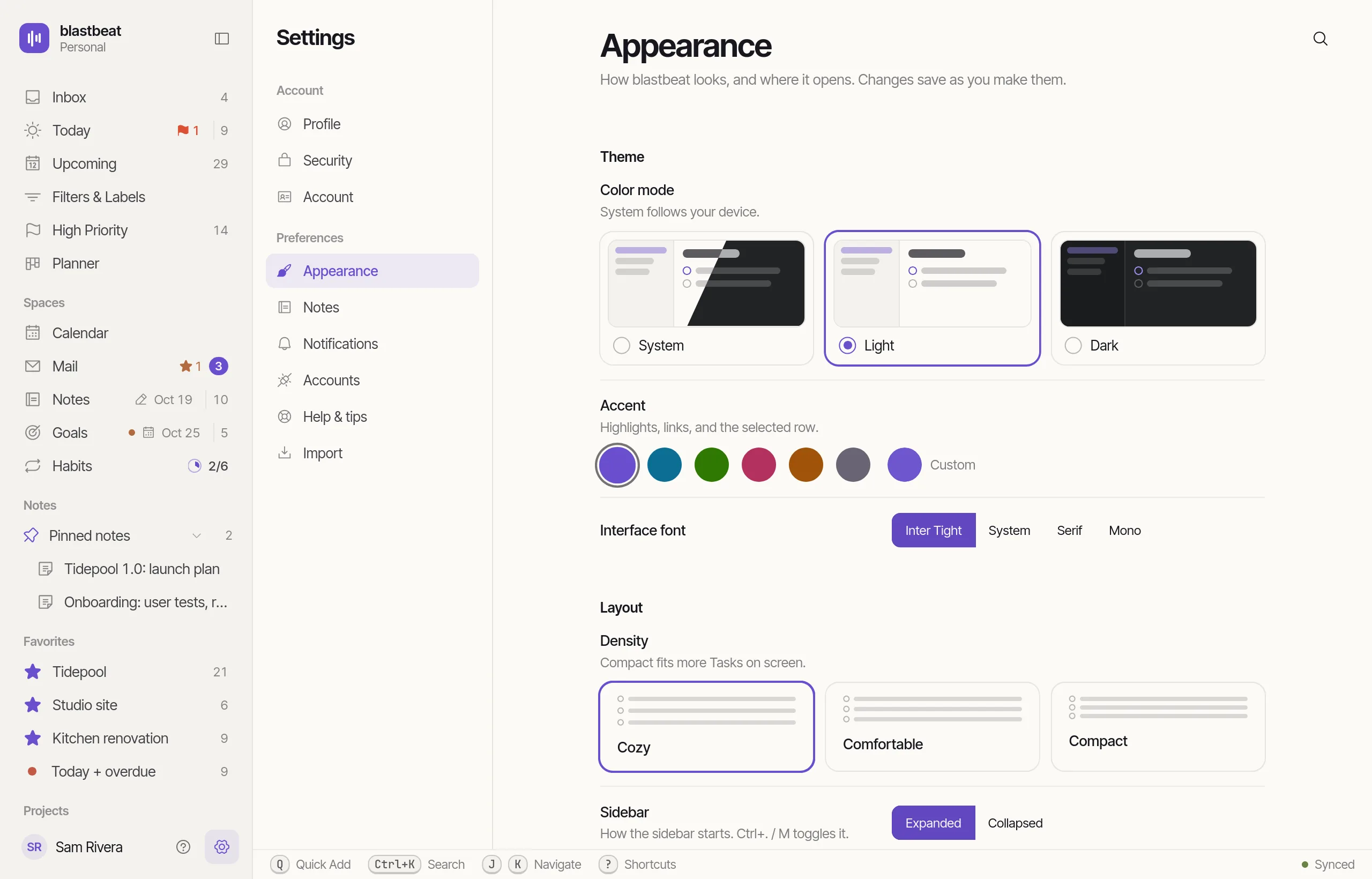
Make it yours, then forget about it.
Theme, accent, interface font, density, sidebar and motion live on one Appearance page. Preferences follow you to every device.
- Three densities: Cozy, Comfortable and Compact
- Six accents, or any color you pick
- Animations Full, Subtle or Off, and Subtle when your system asks for less motion
And the small things.
Small features that do their job and stay out of the way.
One level deep. A Subtask stays in its parent’s Project and Section.
A Task can point at a Note, and a checkbox line in a Note is a Task.
Daily, weekly, monthly or yearly. The Due moves on when you complete it.
A Due date with an optional time, and an optional Start that makes a span on the Timeline.
Up to five per Task, a set time before it is due. They arrive as notifications on iPhone once that app is out.
Click with ⌘ or ⇧, then complete, reschedule, move or label them together.
XUndo the last change from its toast or from the keyboard.
⌘ZMark a Task as waiting on another. The Today panel lists what you are waiting on.
In 15-minute steps. Today shows when they add up to the end of the day.
A Task as a single point in time, drawn as a diamond on a Timeline.
P1 to P4. The Task’s ring takes the Priority’s color.
14Bring Tasks in from a Todoist-compatible CSV, or download them as CSV, Markdown or a ZIP.